


How to Add Your Open Badge to LinkedIn
If you have earned an Open Badge through OpenCourses.ie, you can add it to your LinkedIn profile under Licenses & certifications.
Adding your badge to LinkedIn gives you a simple way to showcase your achievement and provides a direct link back to the digital credential.
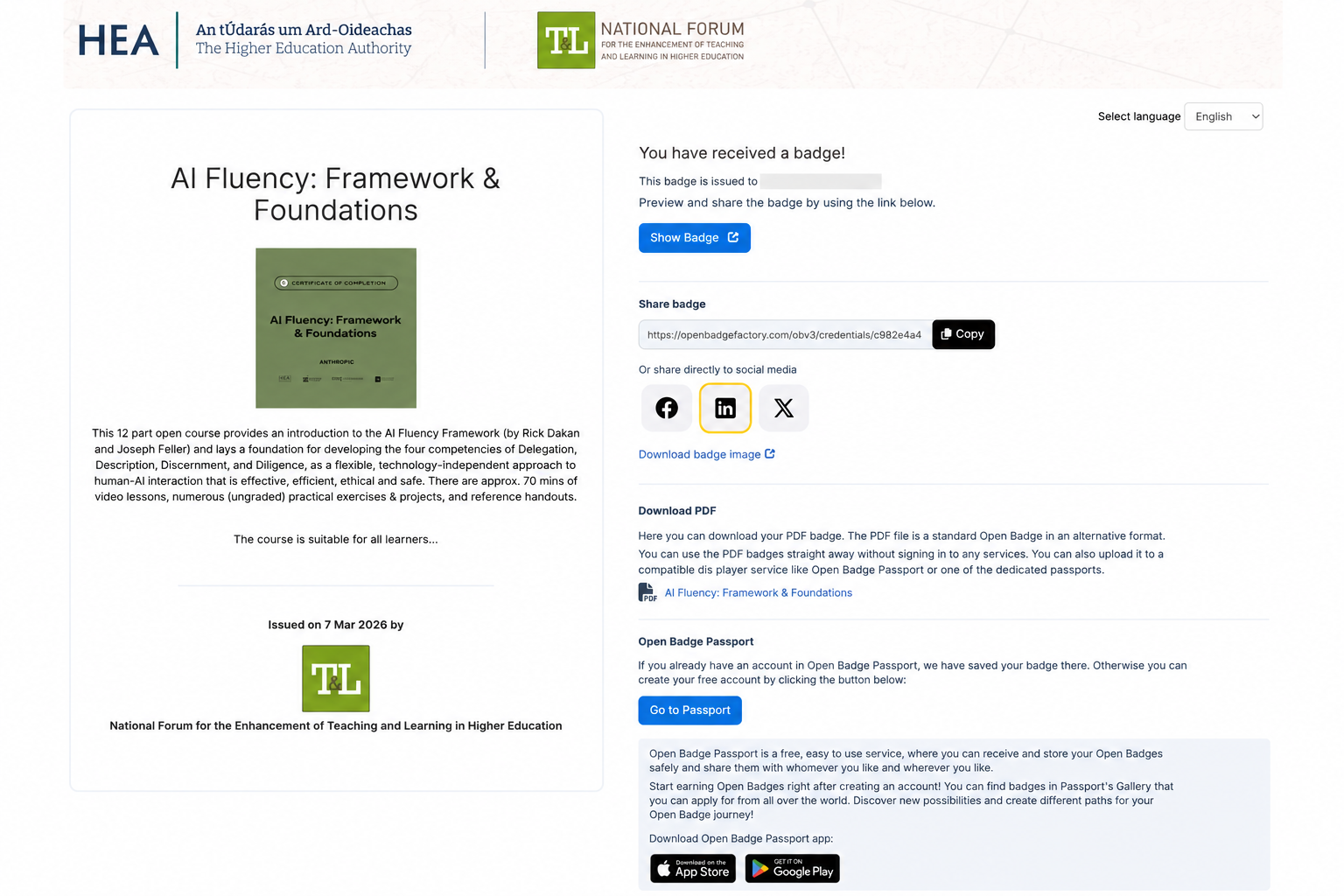
Step 1: Open your badge
After you claim your badge, you will be taken to your badge page.
On this page you can view your badge, copy the badge link, download the badge, or share it to social media.
Look for the LinkedIn icon in the “Share badge” section.
Step 2: Select LinkedIn
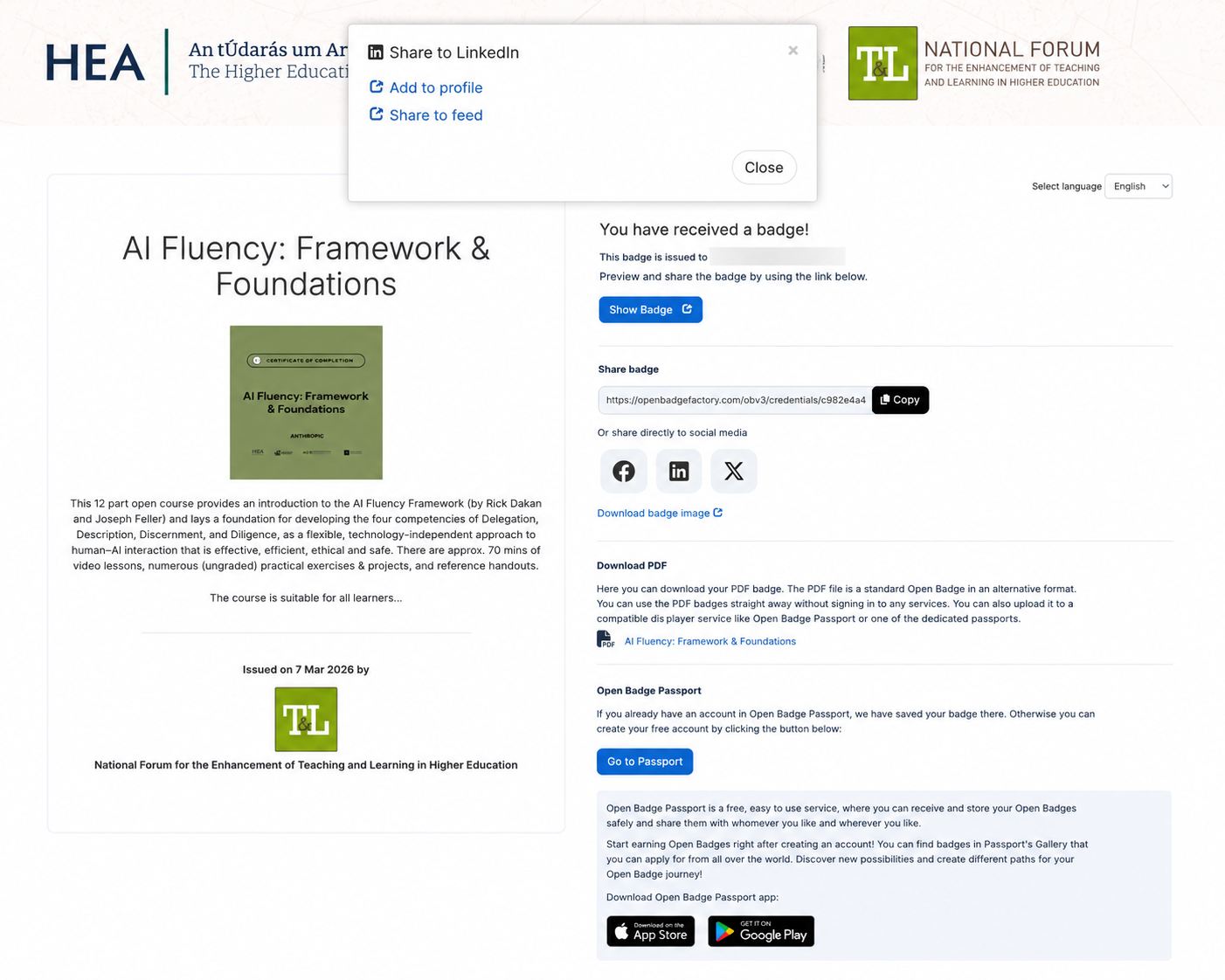
Click the LinkedIn icon.
A small window will open with two options:
- Add to profile
- Share to feed
Choose Add to profile.
“Add to profile” adds the badge to the permanent Licenses & certifications section of your LinkedIn profile.
“Share to feed” is different: it creates a LinkedIn post about your achievement. You can do this after you add it to your profile.
Step 3: Save the credential
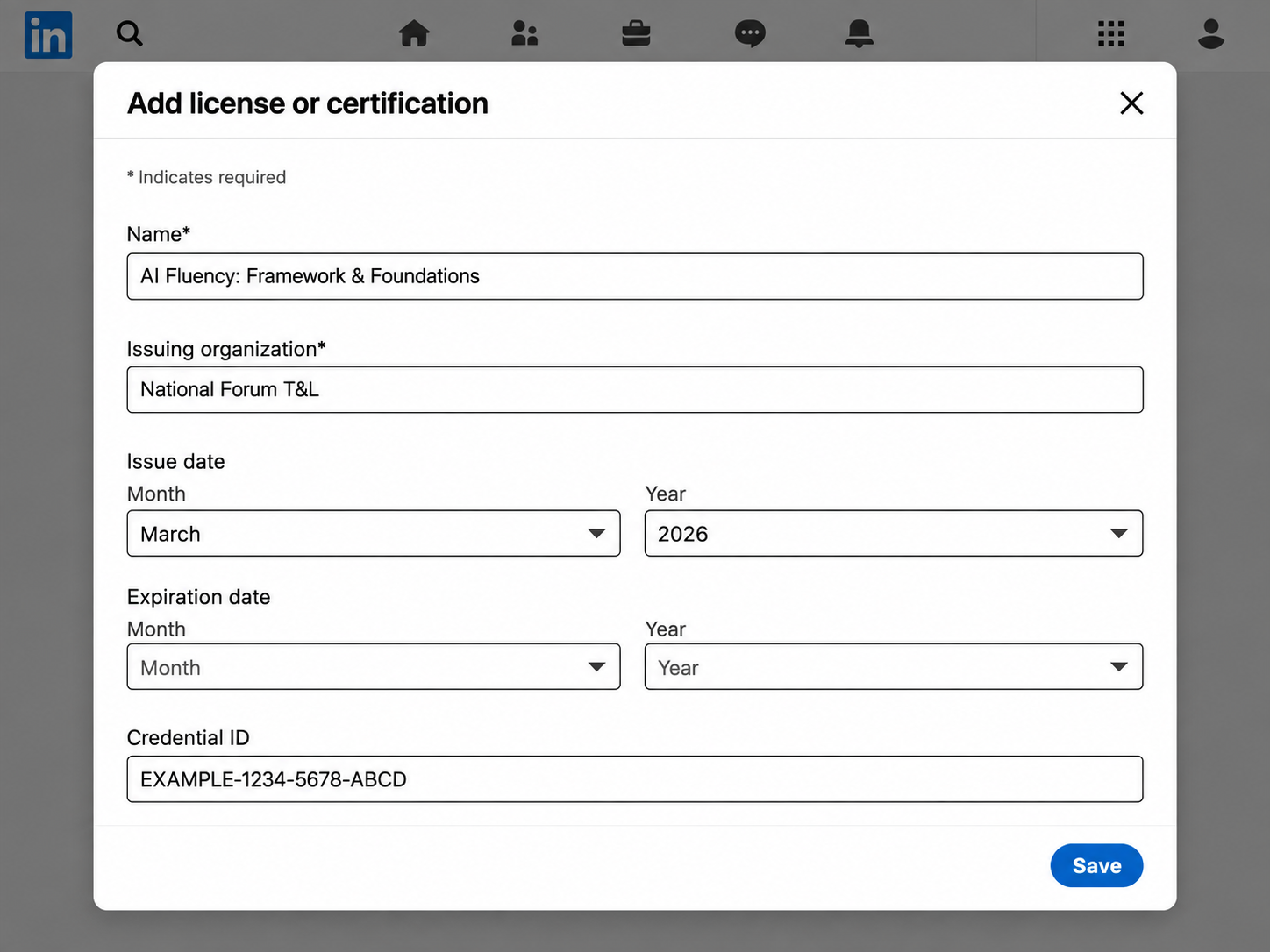
LinkedIn will open the Add license or certification form.
All of the badge information will already be filled in for you. You do not need to change anything.
Simply review the information and click Save.
Step 4: Check your LinkedIn profile
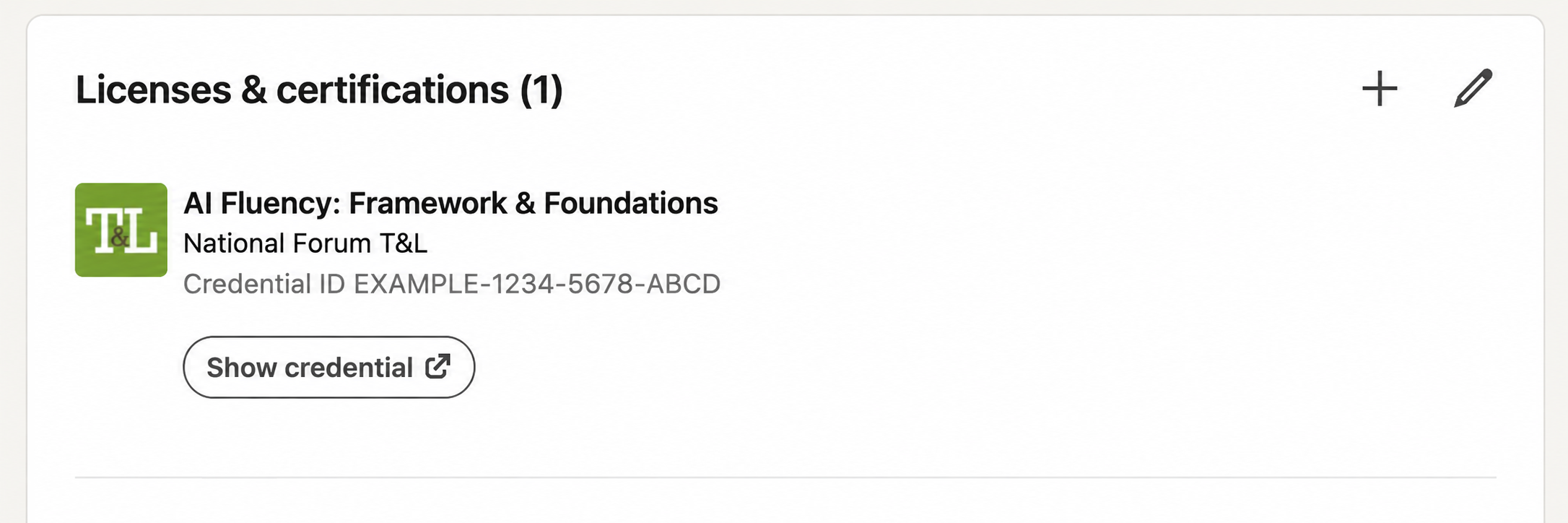
Once you select Save, your badge should appear in the Licenses & certifications section of your LinkedIn profile.
It will normally show:
- Badge title
- Issuing organisation
- Credential information
- Show credential
Selecting Show credential allows someone viewing your LinkedIn profile to open the digital credential and view the information associated with your badge.
You can also share your achievement as a LinkedIn post
Adding the badge to your profile and sharing it to your LinkedIn feed are two separate things.
We recommend adding the badge to Licenses & certifications first so that it remains on your profile.
You can then return to your badge page, select the LinkedIn icon again, and choose Share to feed if you would also like to tell your network about your achievement.
Having trouble?
If the LinkedIn window does not open, make sure pop-ups are allowed in your browser and try again.
If information does not automatically appear in LinkedIn, enter the details manually using the information shown on your badge page.